Passcode Bypass Service
iPhone & iPad

The CheckM8 development team has introduced a new bypass solution for passcode-locked iPhones and iPads powered by A12 and A13 chips. The solution supports cellular signal functionality and uses a Raspberry Pi module, the USBLiter8 exploit, and Passcode Bypass Software developed by the CheckM8 team.

Only devices running the indicated iOS version are supported, provided they are on the passcode lock screen or have menu access (already activated).

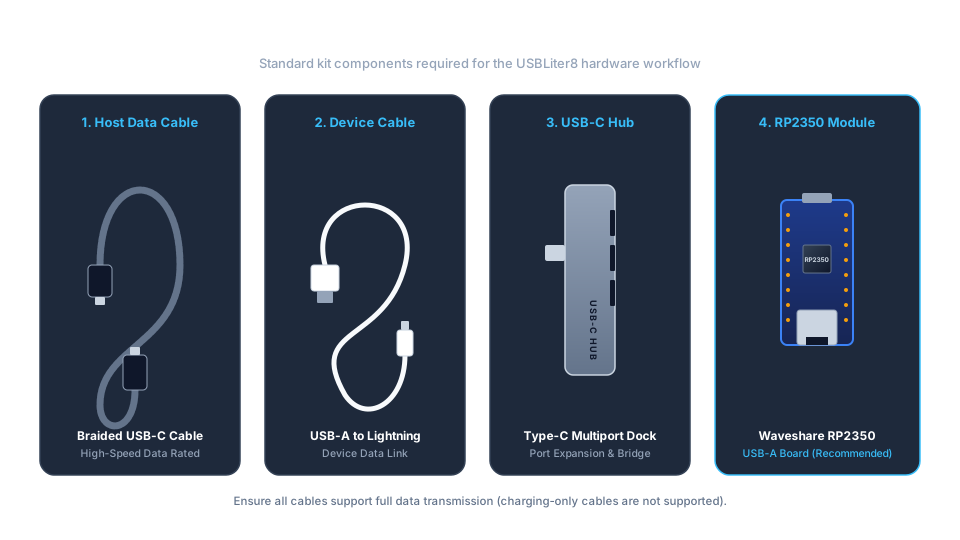
AttentionThe Checkm8 software alone is not enough to complete this service. You will also need a compatible Raspberry Pi Pico module, the appropriate USB data cables, and physical access to the device.

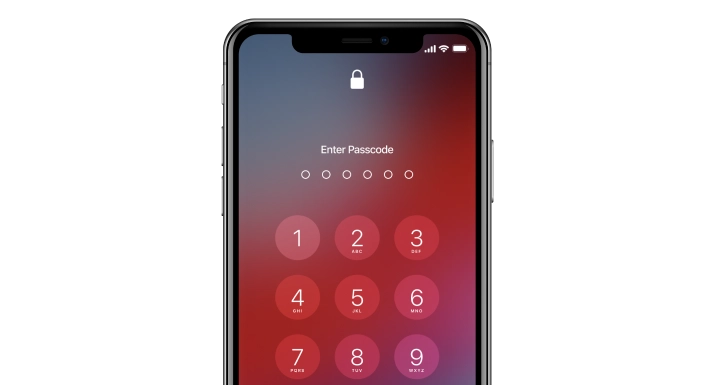
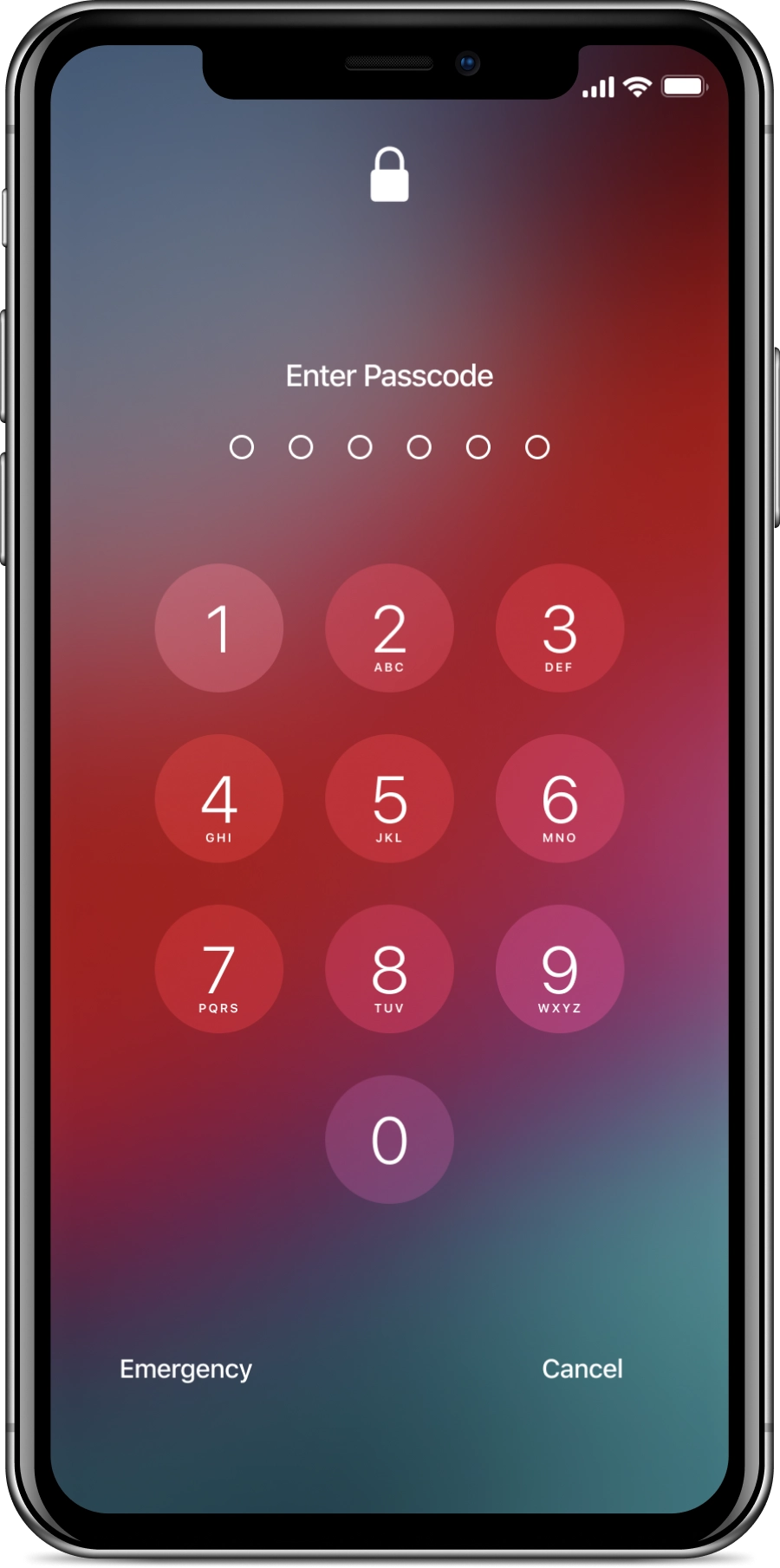
iPhone Passcode Lock
Unlock

COMPATIBLE WITH:

  • COMPATIBLE WITH IPHONE
    • iPhone XS, XR ,XS Max
    • iPhone 11, 11 Pro, 11 Pro Max
    • iPhone SE (2nd generation)
    • iOS 18.x - iOS 26.x
  • COMPATIBLE WITH iPAD
    • iPad Air (3rd generation)
    • iPad mini (5th generation)
    • iPad (8th, 9th generation)
    • iOS 18.x - iOS 26.x
  • COMPATIBLE WITH MACOS & WINDOWS
    • The software is compatible with macOS 10.11 or later
USBLiter8 Exploit Passcode Bypass square green square green square red

Hardware-Level Exploit

What Is the USBLiter8 Exploit?

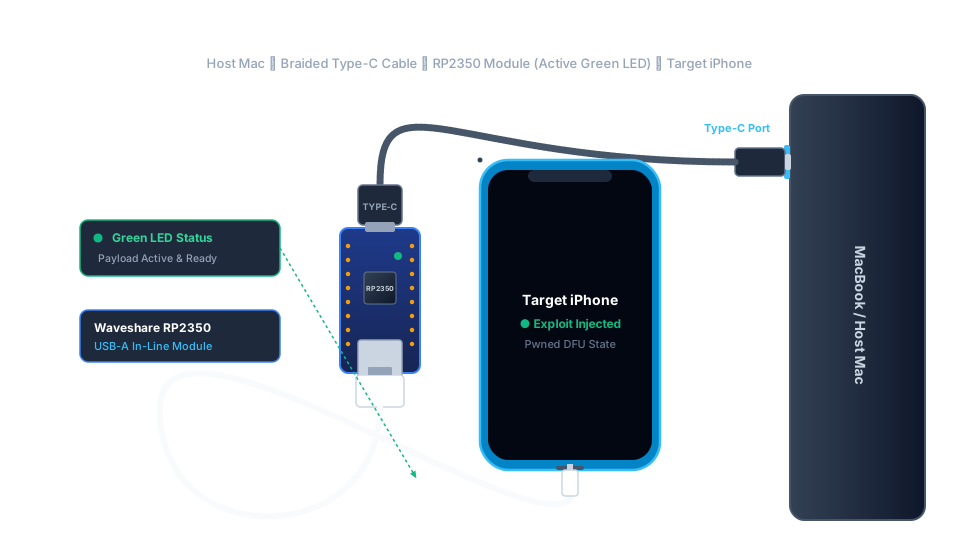
USBLiter8 is a hardware-level SecureROM exploit tailored for Apple devices powered by A12 and A13 Bionic chips. By running at the bootrom level via a USB-connected Raspberry Pi Pico (RP2350-based) board, it triggers before iOS and Apple's signed boot chain load.


This process places the device into a "pwned" DFU mode, granting CheckM8 software the low-level execution environment required to bypass passcode locks while retaining full cellular functionality.

Key Requirements & Workflow

1. Device Status


The target device must be activated and either remain on the passcode lock screen or allow access to the Settings menu.


2. Supported Firmware


Must be running a supported version of iOS or iPadOS (including supported 18.x and 26.x builds).


3. Hardware Setup


Requires a compatible Raspberry Pi Pico board, appropriate USB data cables, and direct physical access.


4. DFU Injection & Execution


The device must be placed into DFU mode so USBLiter8 can establish low-level communication for the CheckM8 software to complete the process.


This service is intended strictly for devices you own or have explicit legal authorization to service. Professional reseller pricing, bulk management, and API access are available.


Get iPhone Passcode Lock Bypass Tool.

Service Pricing


Passcode Bypass Prices.

Designed for ease of use, the CheckM8 tool can bypass the passcode lock screen on a disabled iPhone or iPad and restore full device functionality.

    • iPhone

    $35

    • iPad

    $30

Part 1 of 2

Prepare the RP2350 Module and Run the First Process.

PLEASE NOTE:

This guide is intended for supported A12-A13 iPhone and iPad models. Use CheckM8 only with a device you own or are legally authorized to service.

  • The device must be on the passcode lock screen or already activated with access to Settings.
  • Eligibility depends on the model, installed iOS or iPadOS version and current device state.
  • A compatible RP2350 module and data-capable USB cables are required and sold separately.
  • Do not disconnect the device or RP2350 module while CheckM8 is processing.

Before you begin:

- A supported A12-A13 iPhone or iPad

- The latest CheckM8 application

- A compatible RP2350 module

USB Type-C and device data cables

- A stable internet connection


View supported devices

View compatible equipment


The process has two parts:


During Part 2, repeat Steps 1-3 and Steps 11-15 before completing Step 16. Do not flash the RP2350 module again.

  • Step 1.

    Connect the Locked Device

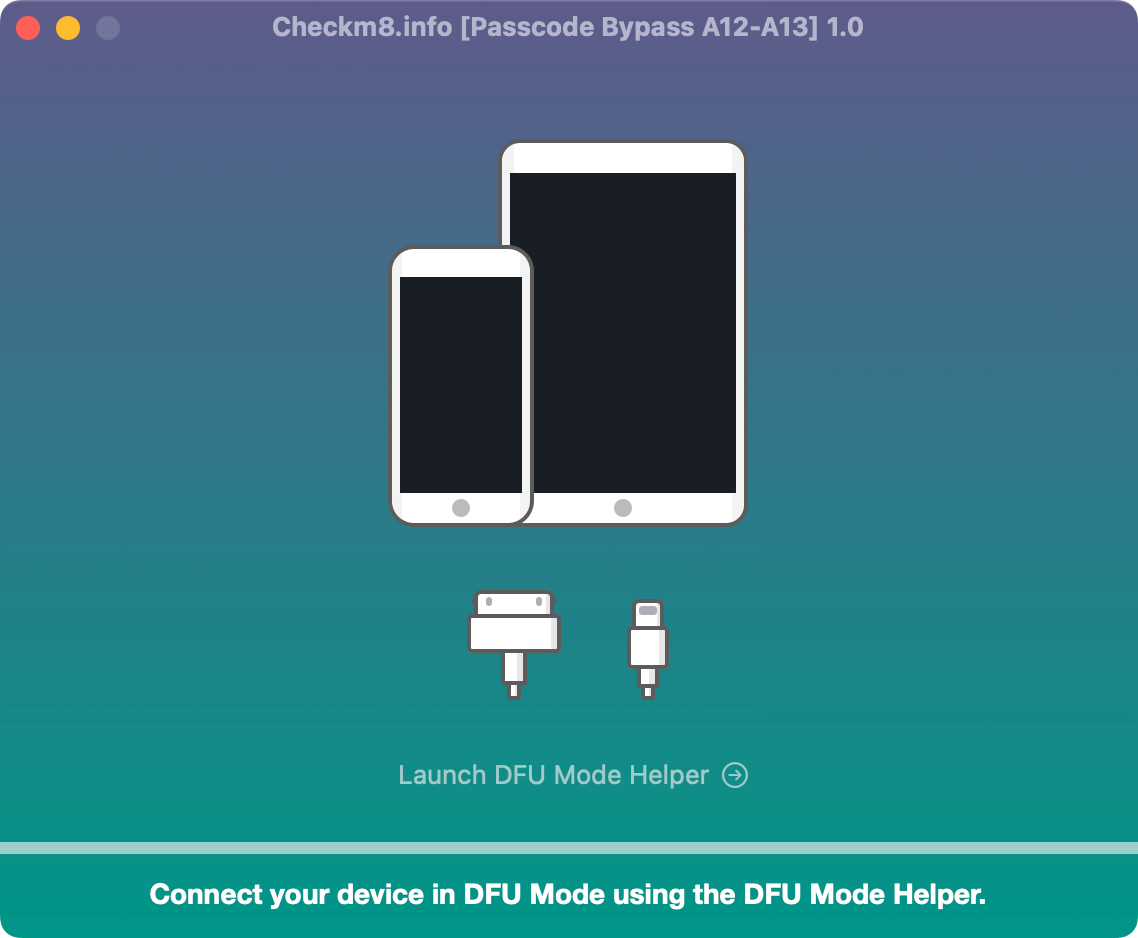
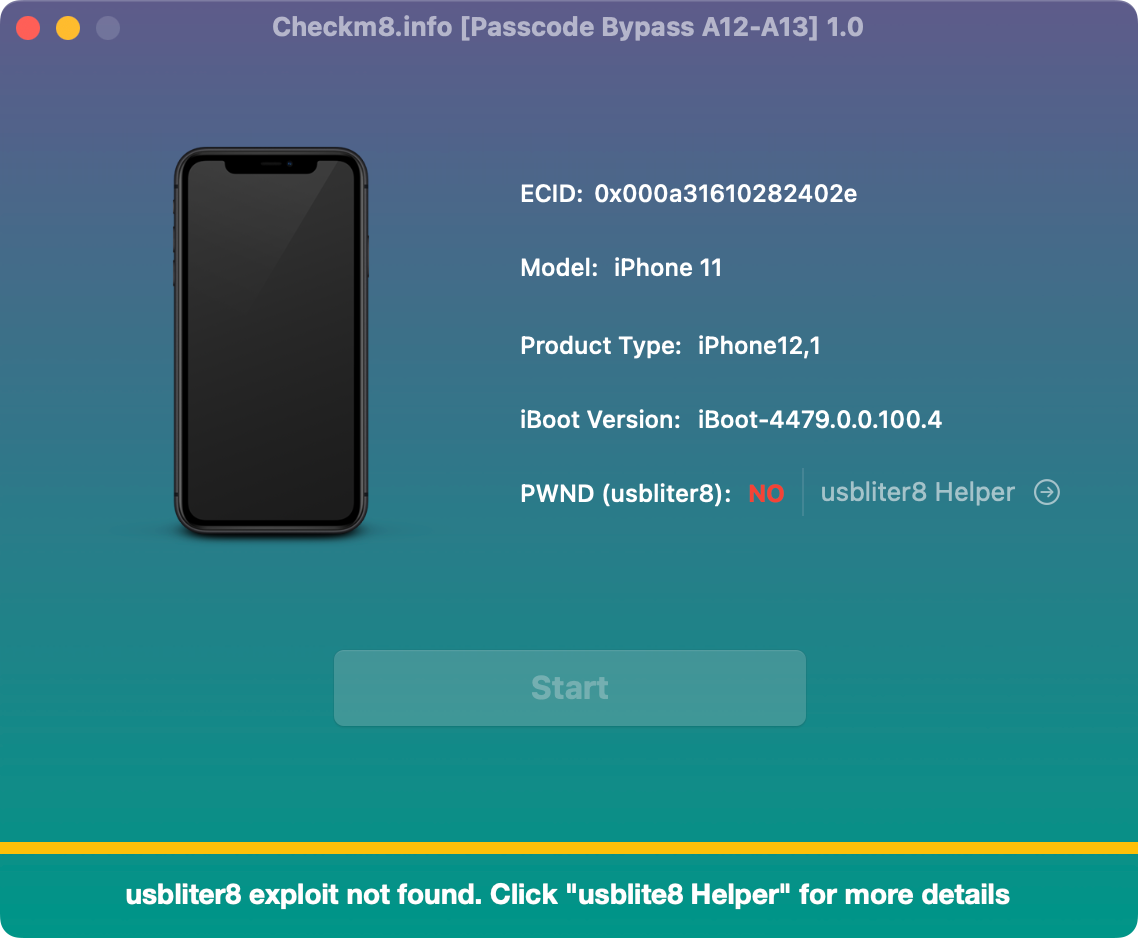
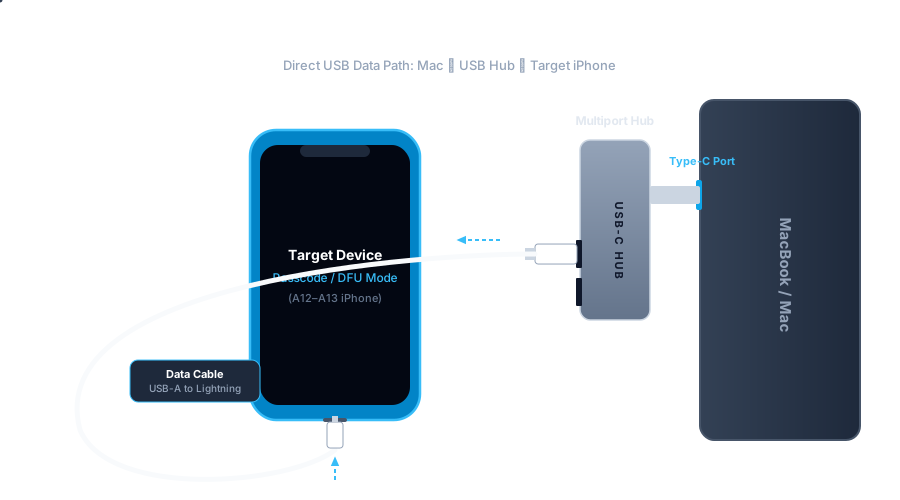
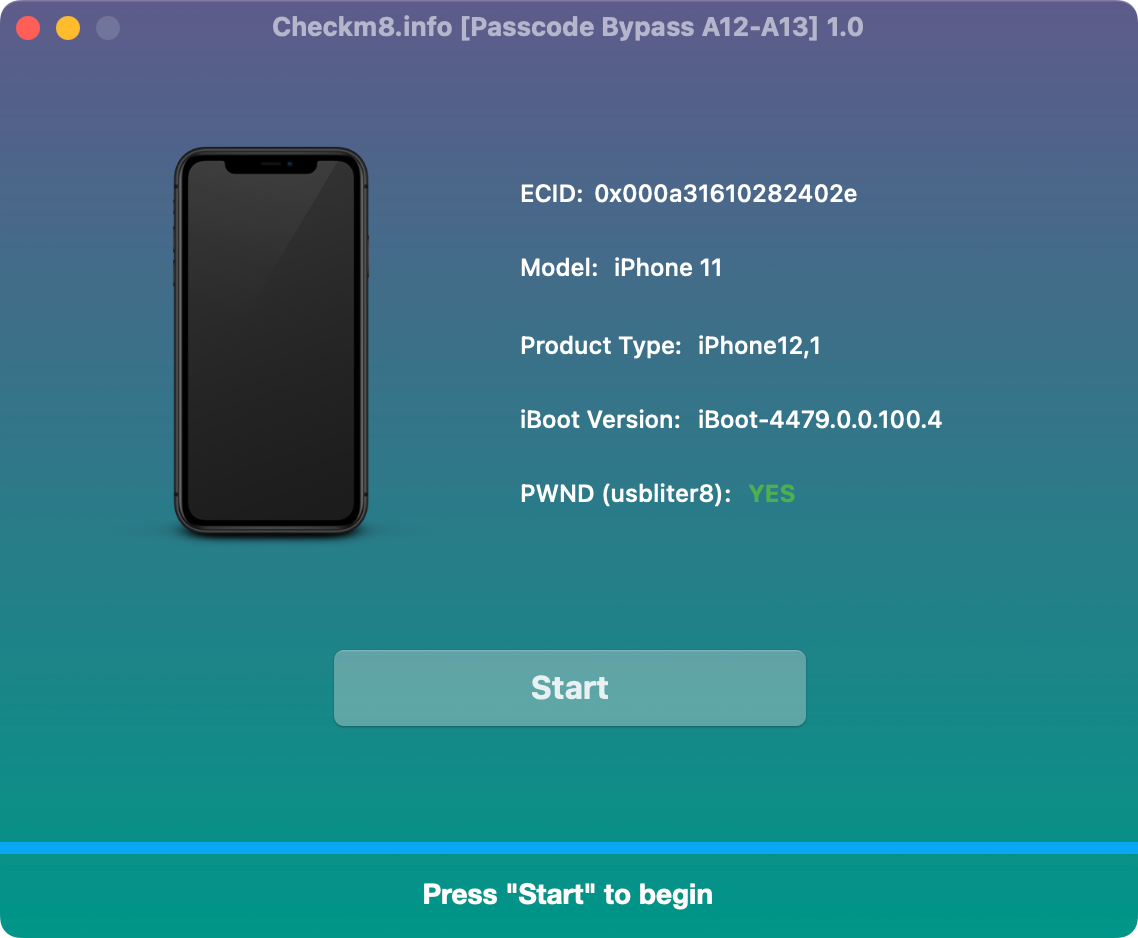
    Connect the passcode-locked iPhone or iPad to your computer and launch the CheckM8 application.

    Connect a passcode-locked iPhone or iPad to CheckM8
  • Step 2.

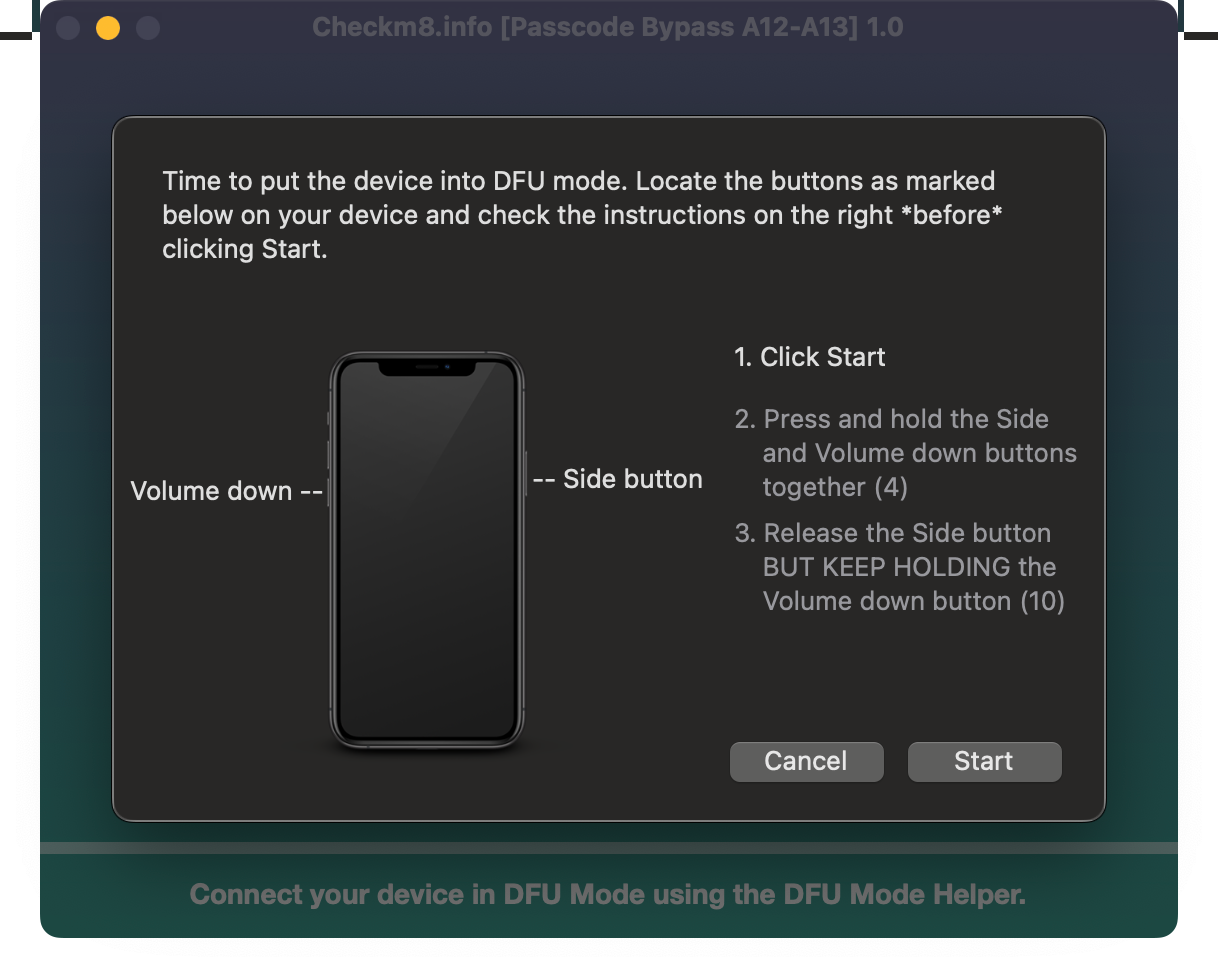
    Follow the DFU Mode Instructions

    CheckM8 will identify the device and display instructions for placing it into DFU mode. Follow every on-screen prompt.

    CheckM8 DFU mode instructions for iPhone and iPad

    Read the CheckM8 DFU mode guide

  • Step 3.

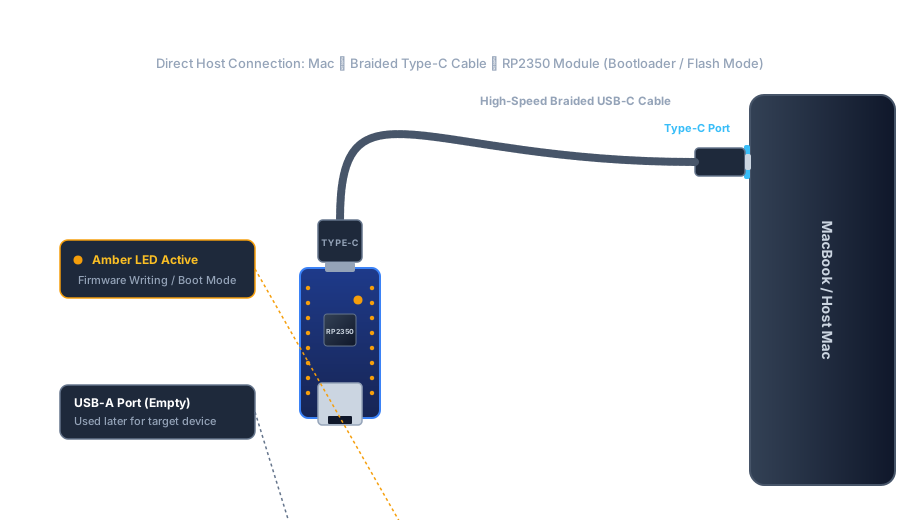
    Connect the RP2350 Module

    Connect the compatible RP2350 module to your computer using a USB Type-C data cable.

    RP2350 module connected to a computer
  • Step 4.

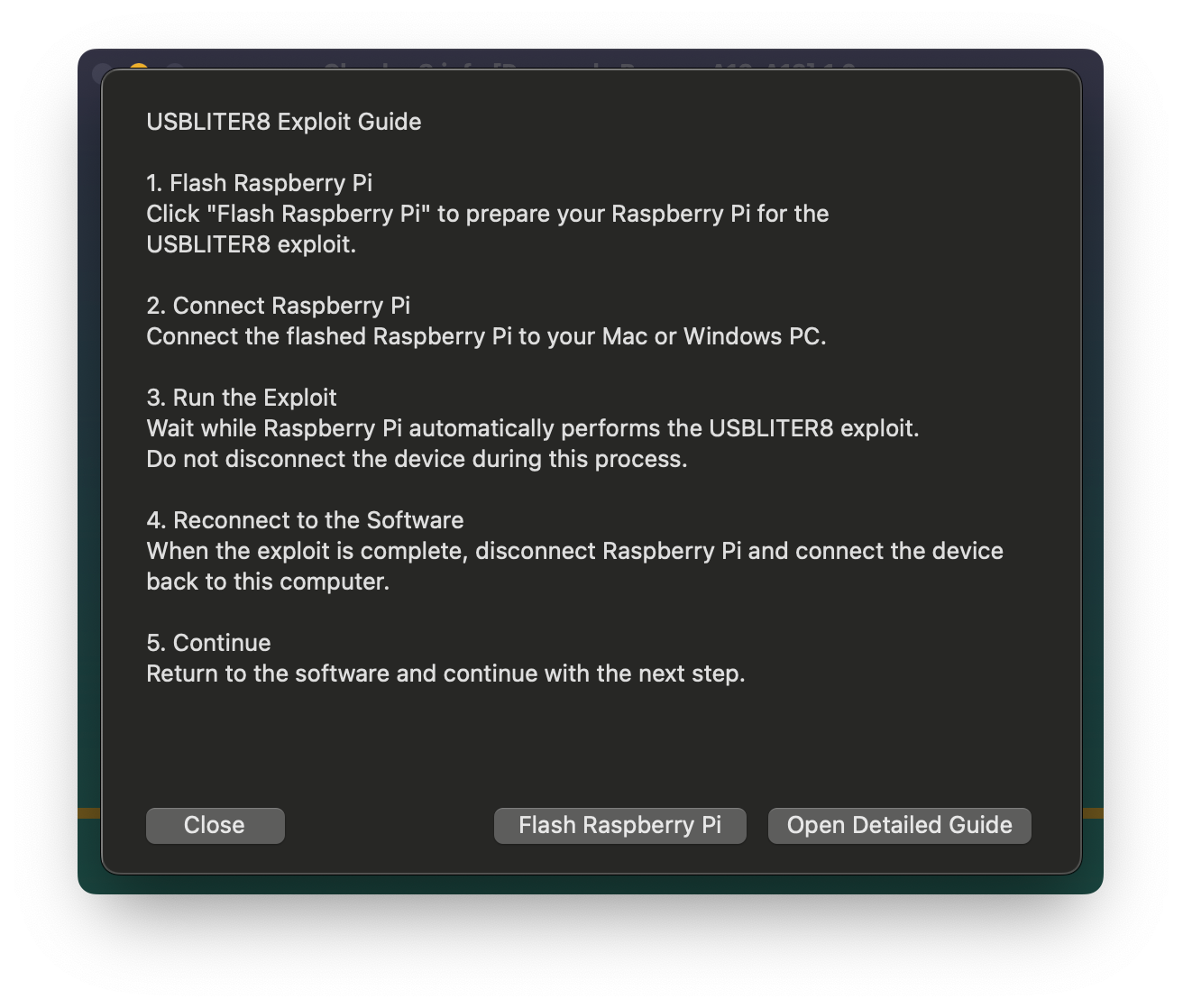
    Open the RP2350 Flashing Section

    Follow the instructions displayed in CheckM8 to open the RP2350 flashing section.

    Open the RP2350 flashing section in CheckM8
  • Step 5.

    Select the Correct RP2350 Model

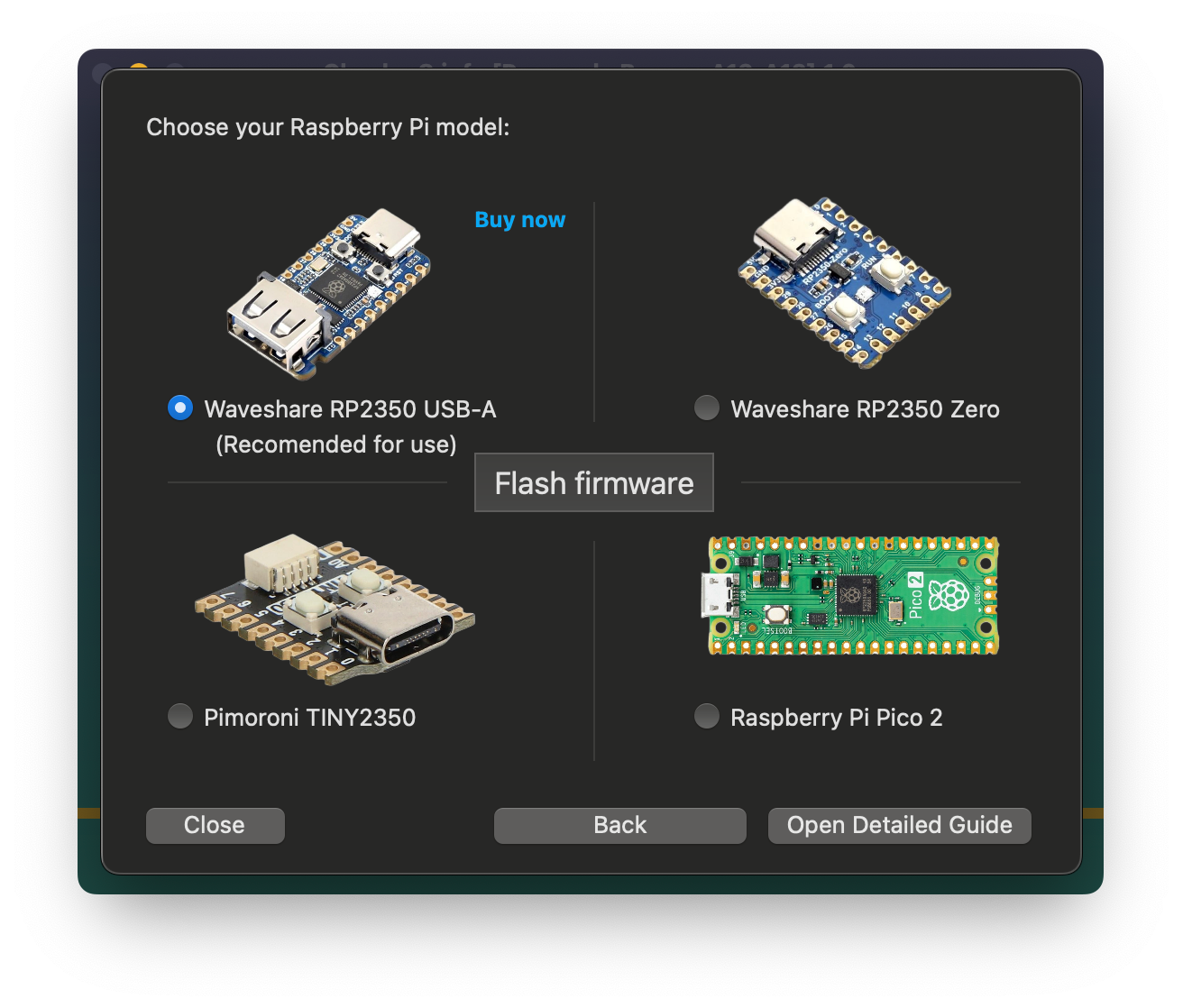
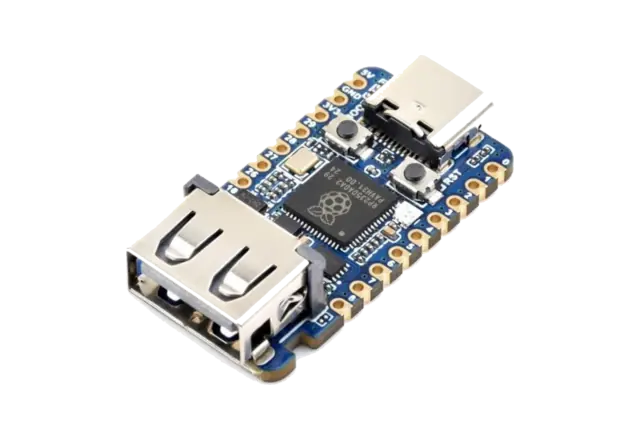
    Select the exact RP2350 module connected to your computer. Waveshare RP2350 USB-A is recommended.

    Select a compatible RP2350 model in CheckM8
  • Step 6.

    Check the Module Type

    Confirm that the model selected in CheckM8 matches the physical RP2350 board connected to the computer.

  • Step 7.

    Flash the RP2350 Module

    Keep the RP2350 module connected, verify the selected model and click the Flash button in CheckM8.

    Flash the selected RP2350 module using CheckM8
  • Step 8.

    Wait for Flashing to Finish

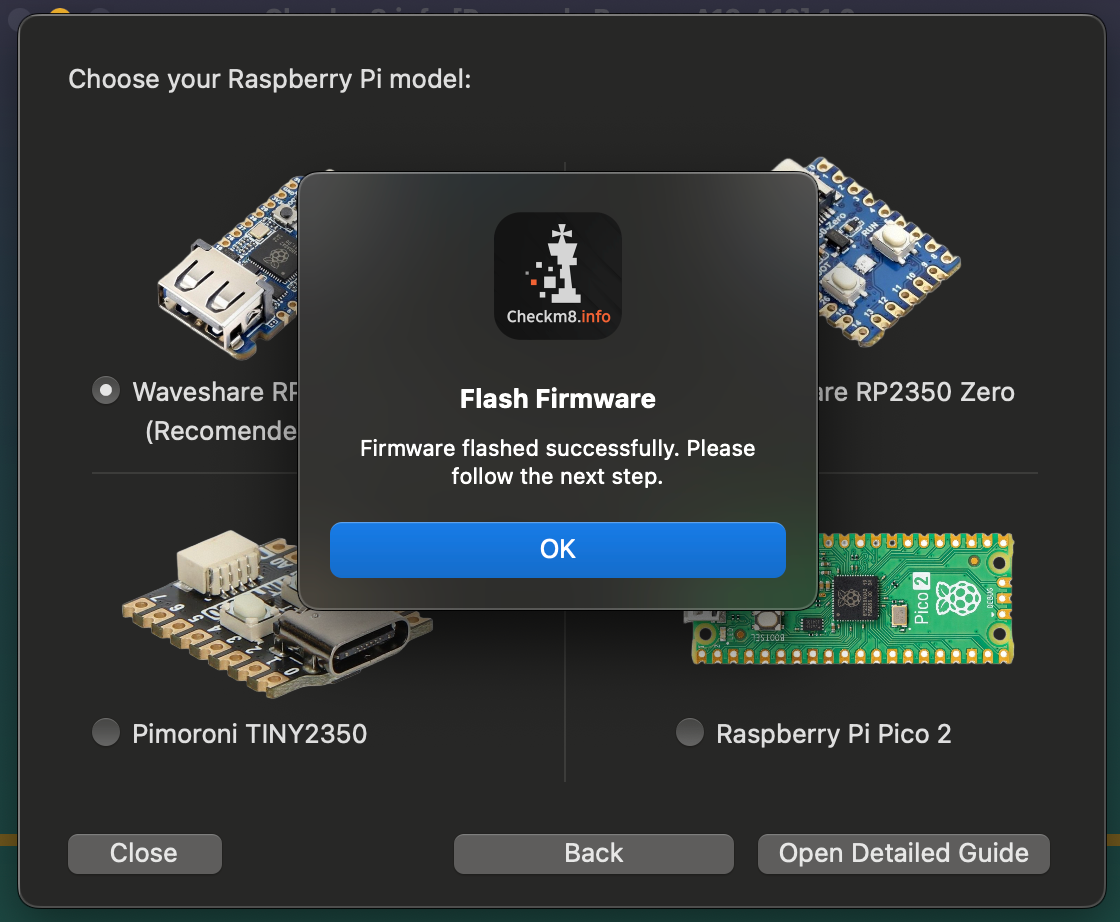
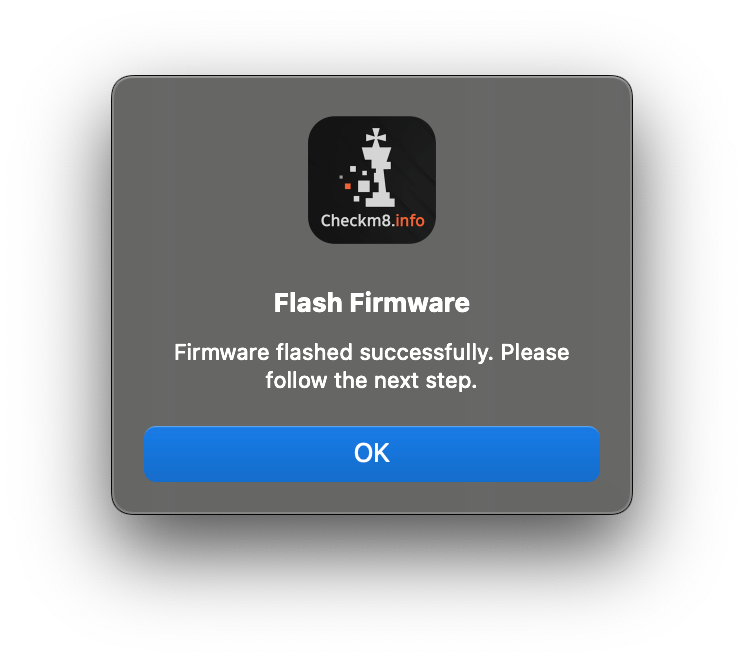
    Wait until CheckM8 confirms that flashing has completed. Do not disconnect the RP2350 board during this stage.

    RP2350 flashing completed in CheckM8
  • Step 9.

    Disconnect the USB Type-C Cable

    Disconnect the USB Type-C cable from both the computer and the prepared RP2350 module.

  • Step 10.

    Connect the Device to the RP2350 Module

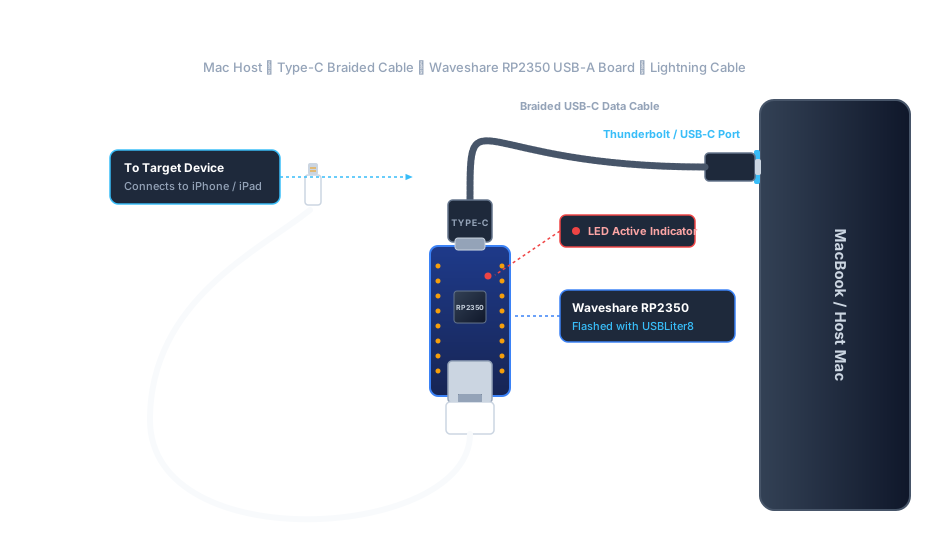
    Connect the device cable to the USB Type-A port on the prepared RP2350 module.

    Connect an iPhone or iPad cable to an RP2350 module
  • Step 11.

    Start the RP2350 Process

    Follow the CheckM8 connection diagram. When the device is connected correctly, the RP2350 stage should begin.

    RP2350 process running with a connected iPhone
  • Step 12.

    Check the RP2350 Status Light

    Use the board status light to follow the current stage:

    • Orange: ready to start
    • Blue: process in progress
    • Green: process completed successfully
    • Red: process failed
    RP2350 status light during the CheckM8 process
  • Step 13.

    Reconnect the Device to the Computer

    After a successful result, disconnect the device from the RP2350 module and reconnect it directly to the computer.

    Reconnect the iPhone or iPad to the computer
  • Step 14.

    Continue in CheckM8 Software

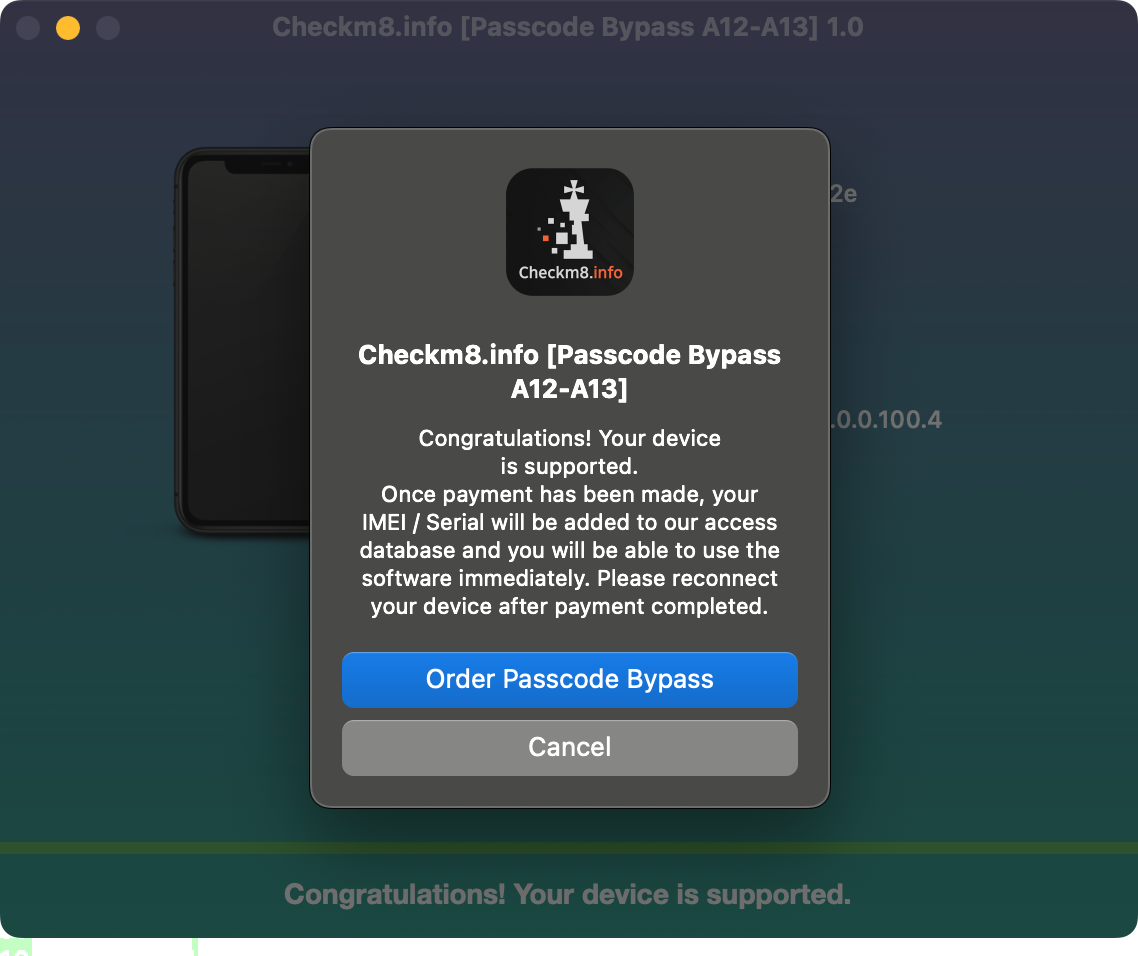
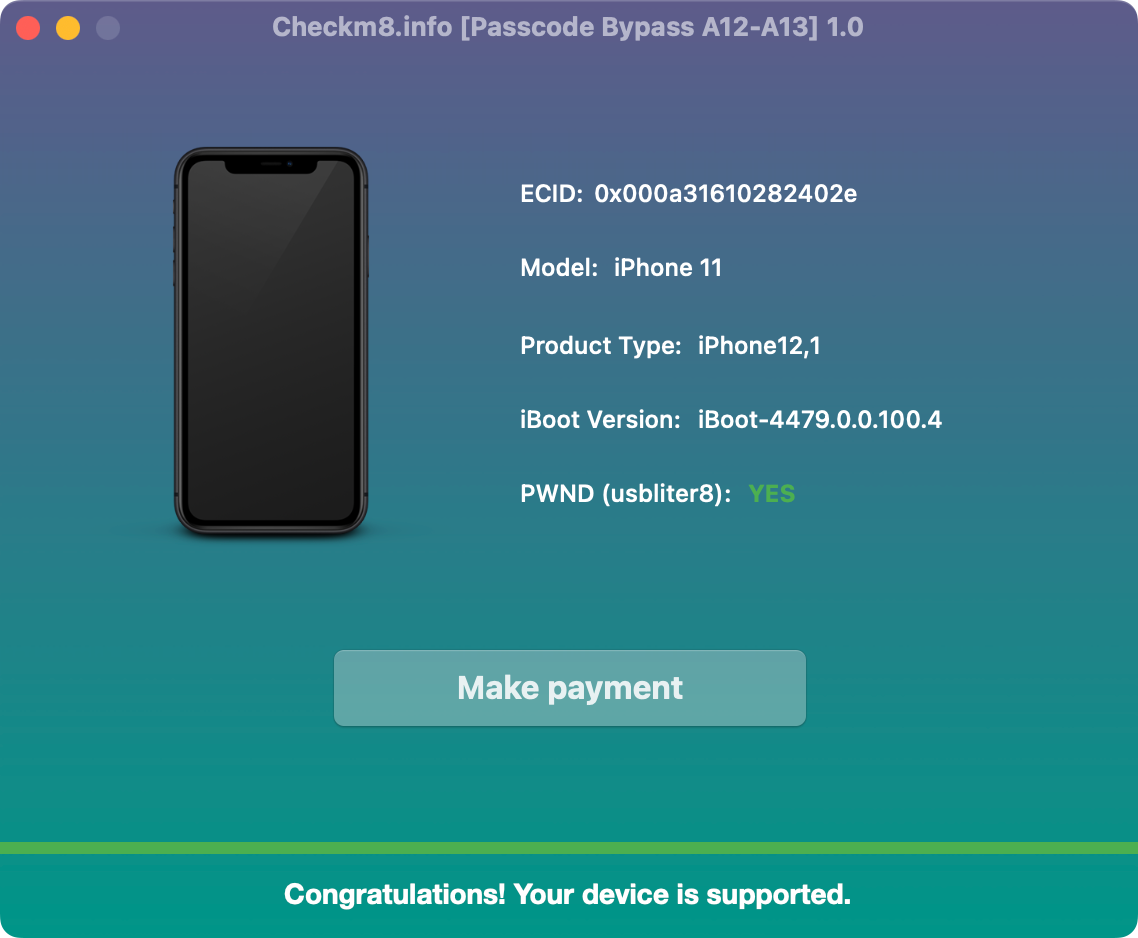
    CheckM8 will recognize the device and prompt you to start the available service or complete the order.

    Continue the passcode service in CheckM8
  • Step 15.

    Start the First Software Process

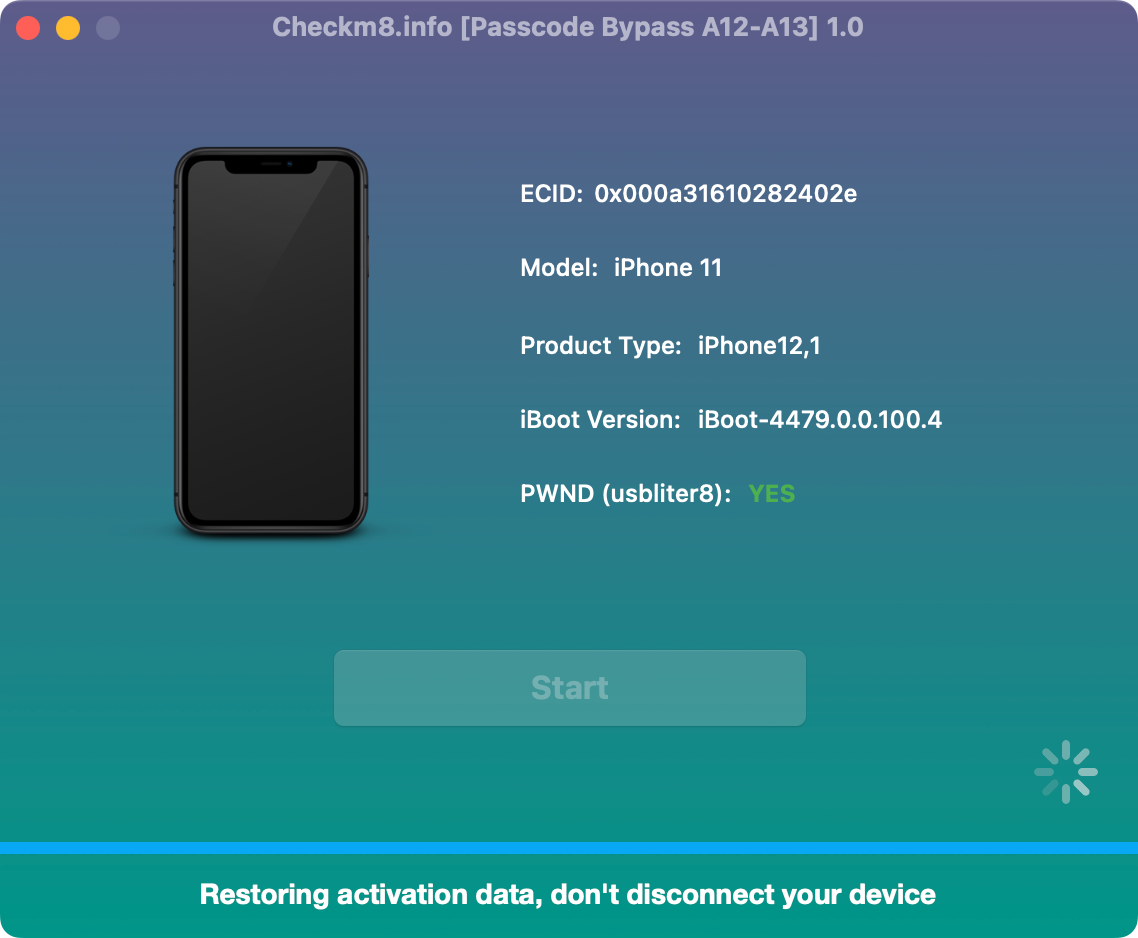
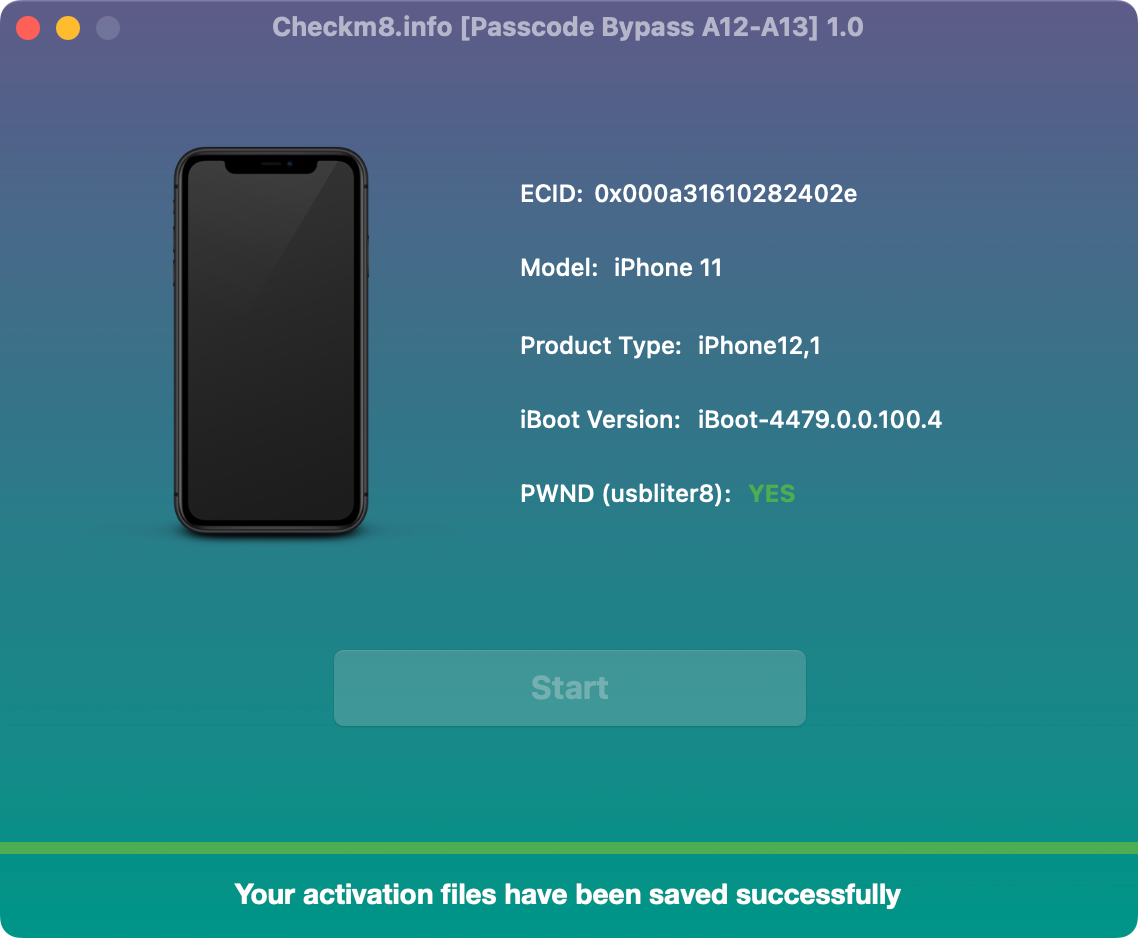
    Click Start and keep the device connected until CheckM8 confirms that the first part has been completed.

    Complete the first CheckM8 software process

    Continue to Part 2

Part 2 of 2

Repeat the Required Steps and Complete the Procedure.

Do not flash the module again:

The RP2350 module was prepared during Part 1. Do not repeat Steps 4-9 unless CheckM8 specifically instructs you to prepare the board again.

Part 2 sequence:

• Repeat Steps 1-3

• Repeat Steps 11-15

• Complete Step 16


Keep everything connected:

Follow the CheckM8 prompts and do not disconnect the device until the final completion message appears.

  • Repeat Step 1.

    Connect the Device and Launch CheckM8

    Connect the device directly to your computer and open the CheckM8 application again.

  • Repeat Step 2.

    Follow the DFU Mode Instructions

    Follow the on-screen instructions until CheckM8 confirms that the device is in the required mode.

  • Repeat Step 3.

    Reconnect the Prepared RP2350 Module

    Disconnect the device after its mode has been confirmed and reconnect the already prepared RP2350 module.

  • Repeat Steps

    Run the Second Hardware and Software Process

    Repeat the same connection sequence used in Steps 11-15:

    1. Connect the device to the prepared RP2350 module.
    2. Wait for the successful RP2350 status indication.
    3. Reconnect the device directly to the computer.
    4. Continue in CheckM8 when the device is recognized.
    5. Click Start and wait for the second software stage to finish.

    Do not repeat the RP2350 flashing procedure during Part 2.

  • Step 16.

    Complete the Procedure

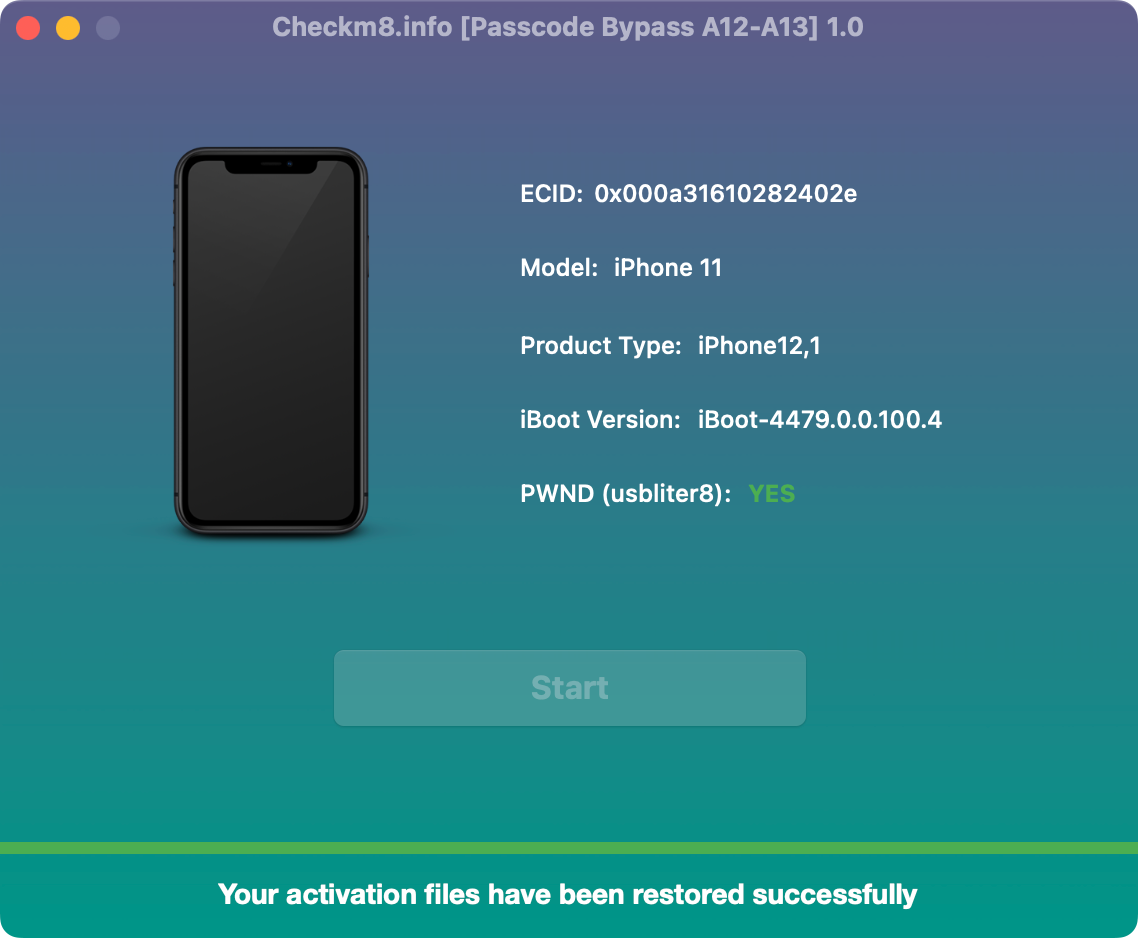
    After the second process finishes, wait for CheckM8 to display the final completion message before disconnecting the device.

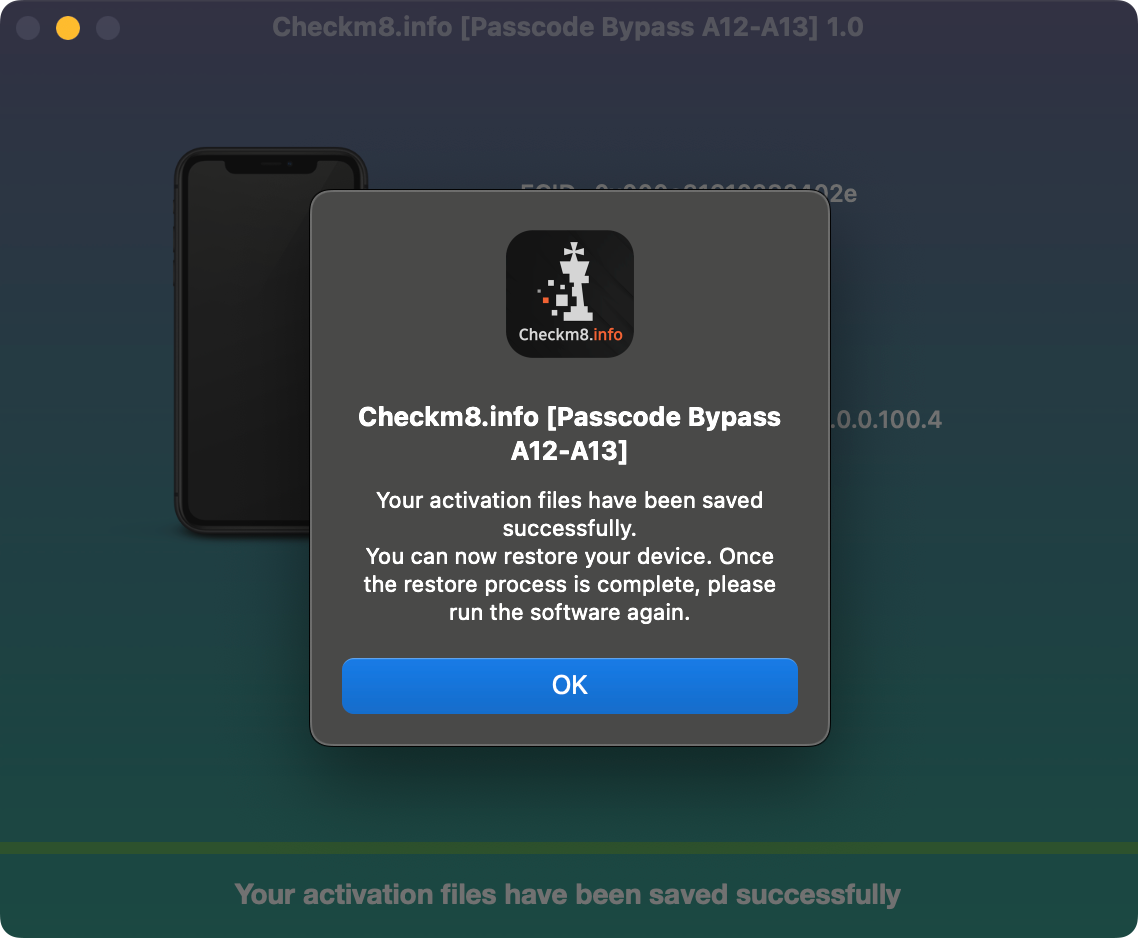
    CheckM8 A12-A13 passcode process completed successfully

    Process completed successfully:

    You can now complete the device setup, sign in with your Apple ID and test the available functions.

Additional equipment

Choose a Compatible RP2350 Module

One compatible RP2350 module is required to complete the CheckM8 process. We recommend the Waveshare RP2350 USB-A because its built-in USB-A host port allows you to connect a supported iPhone or iPad without soldering a USB cable directly to the board.

Only one RP2350 module is required.

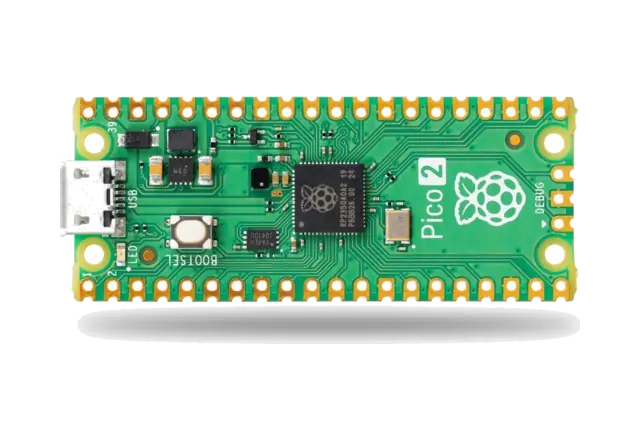
Waveshare RP2350 Zero, Pimoroni Tiny 2350 and Raspberry Pi Pico 2 may require additional wiring or soldering before use.

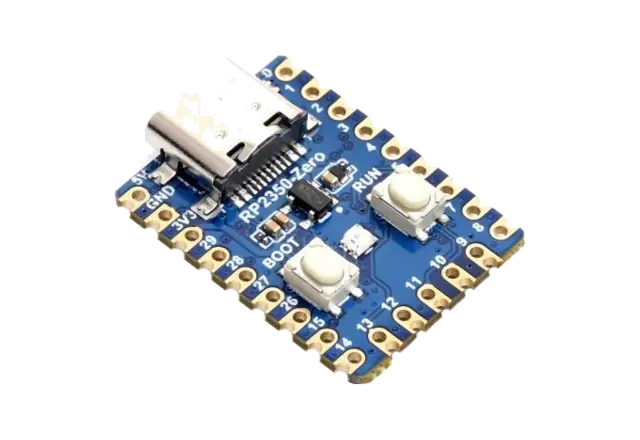
Waveshare RP2350 Zero module compatible with CheckM8

Waveshare RP2350 Zero

A compact RP2350 development board with a USB-C connector. It does not include a USB-A host port, so additional cable preparation and board-specific wiring may be required.

  • Compact RP2350 board
  • USB-C connector
  • Additional wiring required
  • Soldering may be required
Order Waveshare RP2350 Zero
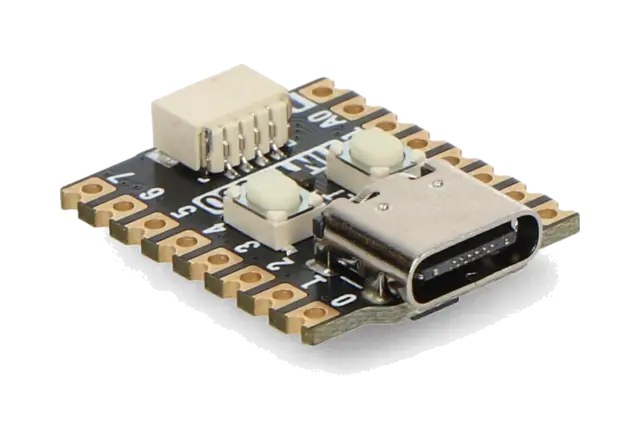
Pimoroni Tiny 2350 RP2350 module compatible with CheckM8

Pimoroni Tiny 2350

A postage-stamp-sized RP2350 development board with USB-C. It is best suited to experienced users because a compatible cable must be prepared using board-specific wiring.

  • Very compact design
  • USB-C connection
  • Board-specific GPIO wiring
  • Recommended for experienced users
Order Pimoroni Tiny 2350
Raspberry Pi Pico 2 RP2350 board compatible with CheckM8

Raspberry Pi Pico 2

The official RP2350 development board from Raspberry Pi. It is supported but does not include a USB-A host port, so additional wiring and soldering are required.

  • Official Raspberry Pi board
  • Powered by the RP2350 chip
  • BOOTSEL flashing support
  • Additional wiring required
View Raspberry Pi Pico 2

🗓 Devices verified before August 20, 2024 can still use Signal Bypass only

CheckM8 Reviews

Ishan Kachroo (IN)

Verified Client

Verified Client

There can be many reasons for a iphone user to forget his/her icloud credentials. But then your services make sure that such person can still enjoy all the benefits of an expensive iphone. keep it up and stay blessed.

Scott Gann (US)

Verified Client by TrustPilot

Very Easy to pay and get INSTANT results. Like instantly. I will use them again!

Justin Dupuis (CA)

Verified Client by TrustPilot

Working great. worked right away with checkra1n. iMessage, facetime and even find my device worked perfectly. All icloud services working just like if it wasn't activation locked.

Jenny Therese (US)

Verified Client by TrustPilot

Unreal! I've tried so many so-called "unlock" services when I unknowingly bought an icloud locked ipad and have been disappointed every single time....until now! It works! It works fast. Customer service is prompt and the final result is exactly what they promise! Definitely recommend Checkm8. They will have my business again.

Dimitris (GR)

Verified Client by TrustPilot

I can't believe it's working! Honestly I was a bit skeptical at first but I decided to pull the trigger for my locked device, I was a bit worried that it might not work and end up wasting my money but the application said my phone was supported and sure enough.. It worked! I'm so happy to have access to my device again and it was a very easy and painless process. Thank you very much Checkm8 team, you are fantastic!

Hermes Trigmegistos (GB)

Verified Client by TrustPilot

Thank you very much your services I really glad that I use my computer! Fast and clean help! Everyone who's need help I recommend them!

Jackson Davies (GB)

Verified Client by TrustPilot

Fixed my issue of unlocking the iPad instantly after payment, I was skeptical at first but after an hour of research I can recommend to others, a 10/10 service.

Read all reviews on TrustPilot

Tools for unlocking iPhone and iPad.

  • iCloud Activation Lock Removal Tool

    iCloud Activation Lock Removal Tool

    Price from $15.99

    This tool is used to get rid of the iCloud Activation Lock from iPhone and iPad devices running on iOS up to version 18

    Discover Software

    Price from $15.99

  • Remote Management [MDM] Bypass Tool

    Remote Management [MDM] Bypass Tool

    Price from $44.99

    This software allows you to bypass the Mobile Device Management (MDM) Configuration Profile and remove the MDM lock screen on any iPhone and iPad model

    Discover Software

    Price from $44.99

  • Passcode Bypass

    From $30

    The CheckM8 development team has introduced a new bypass solution for passcode-locked iPhones and iPads powered by A12 and A13 chips.

    Discover Software

    Price from $30

Tools for unlocking Mac Computers.

  • MacOS Activation Lock Bypass Tool

    MacOS Activation Lock Bypass Tool

    Price from $89.00

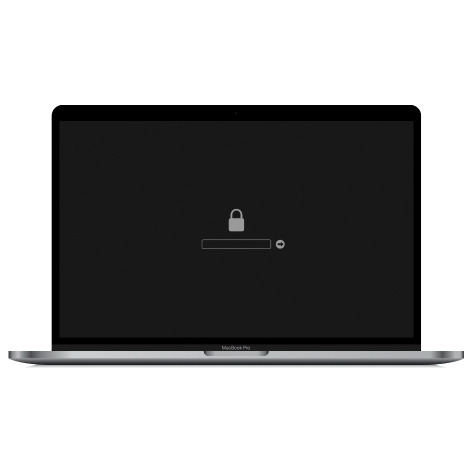
    If your MacBook, iMac, Mac Mini, or Mac Pro is based on the INTEL T2 Chip, you can utilize the CheckM8 software to bypass the Find My Mac and remove the MacOS iCloud Activation Lock screen

    Discover Software

    Price from $99.00

  • EFI Firmware Passcode Unlock Tool

    EFI Firmware Passcode Unlock Tool

    Price from$99.00

    A fast and effective solution to unlock the EFI security firmware (BIOS) password protection on any Mac equipped with the T2 chip is available

    Discover Software

    Price from $99.00

  • MacOS Remote Management Bypass Tool

    MacOS Remote Management Bypass Tool

    Price from$29.00

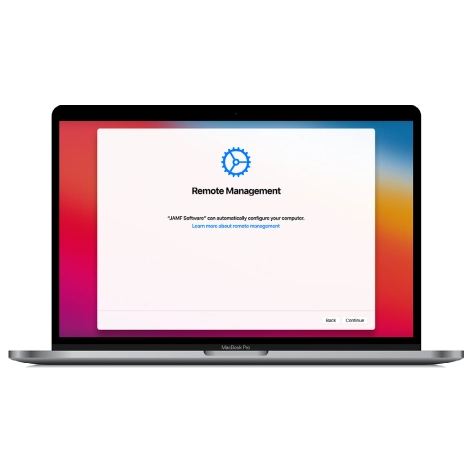
    This tool is designed to bypass remote management on MacOS, allowing you to gain full access to your MacBook without any restrictions imposed by the MDM lock screen.

    Discover Software

    Price from $29.99

  • MacOS Remote Management Bypass Tool

    MDM Unlocking Tool [T2 INTEL]

    Price from$79.00

    The new CheckM8 software provides a permanent MDM unlock solution for MacBook Pro, Air, and other Mac computers that are equipped with T2 processors.

    Discover Software

    Price from $79.99

  • MacOS iCloud PIN Lock Bypass Tool

    MacOS iCloud PIN Lock Bypass Tool

    Price from$49.00

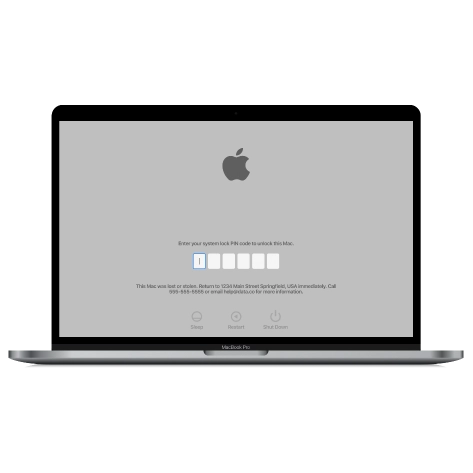
    If you're having trouble with the iCloud PIN lock screen or have forgotten your PIN, this software can help you bypass the lock screen and regain access to your Intel-based MacBook

    Discover Software

    Price from $49.00

information-center

  • Secure

    Your personal info will always be protected and never be exposed

  • Customer Support

    We take pride in providing excellent customer support services

  • Free Updates

    You will have lifetime access to free software updates.

  • Money-Back Guarantee

    We guarantee a 100% money-back policy.